When you’re dealing with catalogs that span thousands of SKUs, manually resizing images becomes a challenging bottleneck.
Your Amazon listings need 2000x2000px, Shopify requires 2048x2048px, and your website needs optimized thumbnails. All from the same source images.
The solution? Tools that help you bulk resize images through automated workflows. That too while maintaining quality and saving hundreds of production hours.
Whether you’re a creative operations manager or a retouching manager, you need the right solution to bulk resize images for your workflow.
And in this guide, we walk through the best methods to batch resize images for eCommerce.
Table of Contents
How to Choose the Best Bulk Image Resizer?
When evaluating solutions to resize images for eCommerce, focus on these core factors:
Image Quality
When you are processing your product images, you expect consistent quality across image sizes. After all, your product thumbnails are as important as the images on the product page.
Hence, always ensure that your tool to bulk resize images is optimized to deliver consistent quality across all your required sizes.
It must maintain color profiles, handle transparency, and offer compression options that balance file size with visual quality.
Ease of Use
If you are adding a new tool to your photo editing workflow to overcome a bottleneck, it must not be at the cost of complication. It must have an overall impact on your production line and make work easy.
Always ensure that setting up and using your solution to batch resize images is easy. Additionally, prioritize tools that need zero to no human intervention. That’s when you truly upgrade your production line.
Workflow Integration
Isolated tools create friction. If your team exports images from one tool to another, you’re simply losing hours and resources managing temporary files. Also, it increases the risk of errors.
Opt for platforms that bulk resize images and also offer photo editing capabilities. This way, you either get the entire output or can easily integrate the tool into your workflow.
Processing Limits
There are many tools to batch resize images that work fine for 20-50 images but struggle when it comes to processing a batch of 100 or 1,000 images. Every tool that is out there has limits.
So, when choosing a platform, be aware of your requirements and learn about the limitations you may face. This will ensure that you choose a platform that can bulk resize images effectively and offers scalability for the future.
4 Ways to Bulk Resize Images
Free Tools
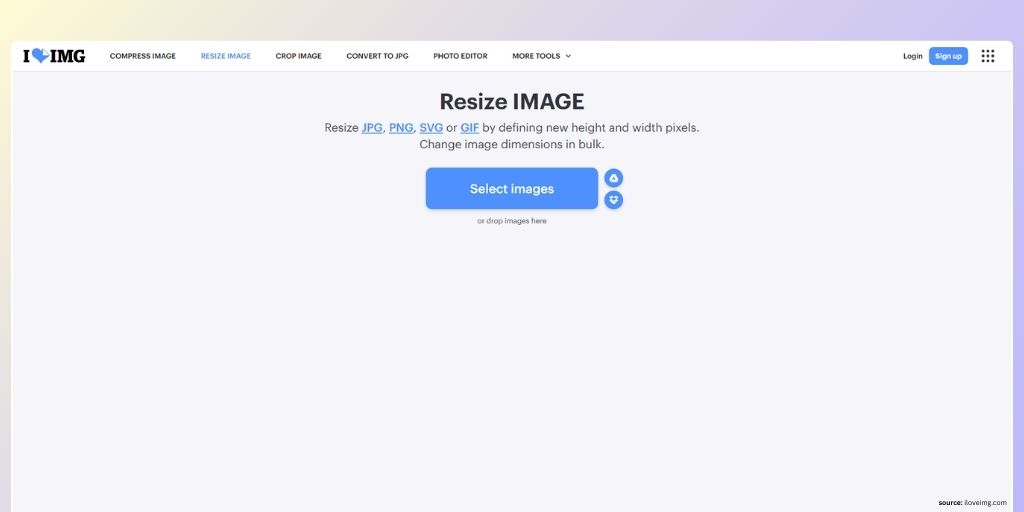
Online tools to bulk resize images like BulkResizePhotos, ILoveIMG, and ResizePixel offer quick solutions for small batches.
These are browser-based tools that typically let you upload images, select dimensions, and download a zip file of resized results.
If you have limited files and are looking for a one-time solution, these are effective ways to resize images for eCommerce.
Pros
- Zero cost barrier: Accessible for startups testing workflows before investing
- No installation required: Browser-based access from any device
- Immediate results: Upload, resize, and download in minutes for small batches
- Simple interface: No technical expertise needed
Cons
- Volume restrictions cripple scalability: 20-50 image caps force repetitive manual work
- Privacy concerns with product photography: Unreleased products uploaded to third-party servers
- Quality inconsistency: Basic interpolation algorithms degrade image sharpness
- No consistency features: Each batch processed independently without standardization
Photoshop
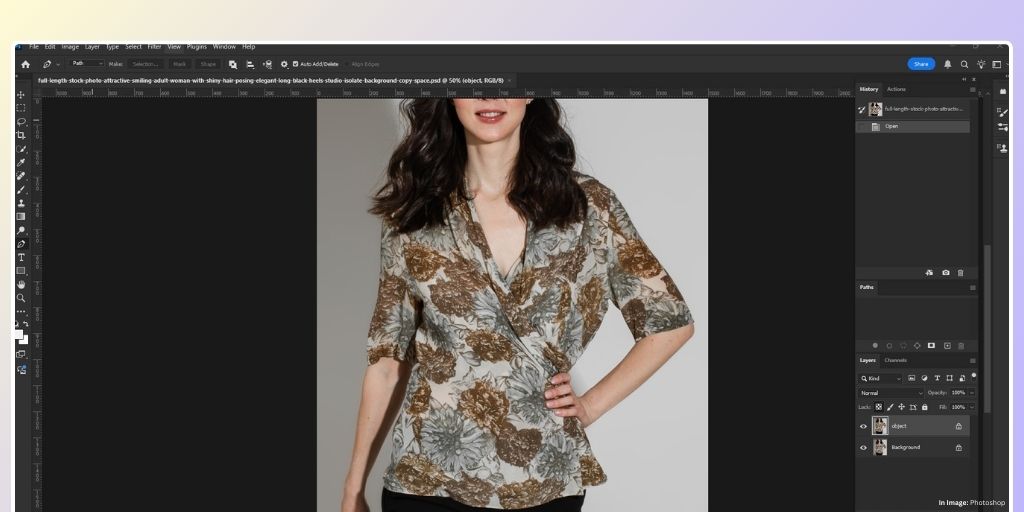
Adobe Photoshop remains the industry standard for image editing. Its Image Processor and scripting capabilities make it a powerful option to bulk resize images.
Teams work with either developers or now AI tools to create custom scripts that work with Photoshop to batch resize images at once.
This workflow ensures that everything is processed locally and within a familiar interface for further image processing and correction.
Pros
- Unmatched quality control – Precise algorithm selection and sharpening options
- Complex workflow support – Combine resizing with borders, exposure adjustments, and format changes
- Local processing – Complete privacy for unreleased products
- Professional-grade output – Industry-standard results trusted by major brands
Cons
- Steep learning curve: Image Processor and Actions require technical knowledge and training time
- Sequential processing is slow: 2,000 images could take hours, locking up workstations
- Multi-platform requires multiple processes: Separate actions for Marketplace, Website, and thumbnail versions
- High licensing costs: $54.99/month per user adds up quickly for teams
Python
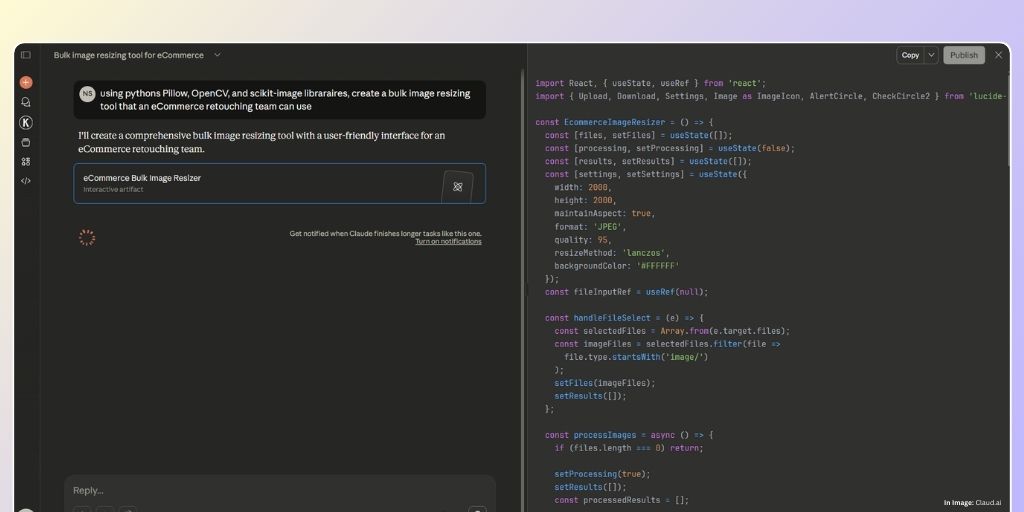
For teams with development resources, Python libraries like Pillow, OpenCV, and scikit-image offer programmable ways to batch resize images.
And with the help of tools like Claud.ai, a user from a non-technical background can also create a basic setup.
Compared to other options, this approach provides maximum flexibility for custom workflows when you need to bulk resize images.
Pros
- Massive volume efficiency: Process tens of thousands of images with consistent specifications
- Unlimited customization: Integrate with databases, quality checks, intelligent cropping, and API uploads
- Cost-effective at scale: Free open-source tools eliminate recurring subscription fees
- Seamless system integration: Connect DAMs, spreadsheets, and platforms programmatically
Cons
- Requires skilled developers: While writing code has become easier, maintaining scripts and ensuring consistent and desired output still needs technical expertise
- No non-technical access: Creative directors can’t adjust specifications without developer involvement
- Complex error handling: Corrupted files, varying aspect ratios, and edge cases require robust code
- No visual interface: Debugging requires code review rather than UI adjustments
Autophoto
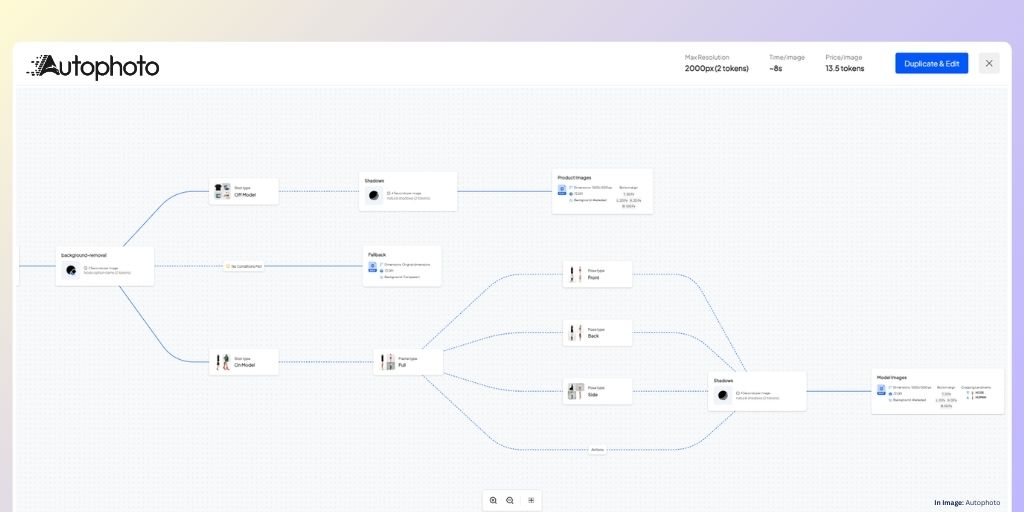
Autophoto.ai is a rule-based AI photo editing platform built specifically to batch resize images and process bulk product photos for eCommerce.
It is one of the best platforms to bulk resize images. But also, it offers additional functionalities to automate the entire photo editing workflow.
Rather than just resizing, you can create custom “blueprints” that define complete editing specifications once. This includes your image size, margins, background replacement, product retouching, shadow adding, product alignment, and more.
Additionally, in your workflow, you can also add multiple output versions for all your marketplaces, website, thumbnails, and more from a single input.
Pros
- Complete workflow consolidation: Background removal, cropping, margins, shadows, retouching, and resizing in one blueprint
- Multi-platform output from single upload: Generate Amazon, Shopify, Instagram, and website versions simultaneously
- Transformative processing speed: Thousands of images processed in minutes through parallel AI processing
- Perfect consistency across catalogs: Shared blueprints ensure identical specifications for every image
- Team collaboration built-in: Everyone applies identical standards, with visibility for operations managers
- Predictable rule-based results: Exact specifications every time, unlike generative AI tools
Cons
- Purpose-built for eCommerce: May be more comprehensive than needed for occasional resize-only tasks
How to Bulk Resize Images with Autophoto?
Autophoto has a blueprint-based workflow. Meaning, you first create a workflow to set up your editing requirements, upload images in bulk, and then download.
Let’s understand it in detail.
Create Blueprint
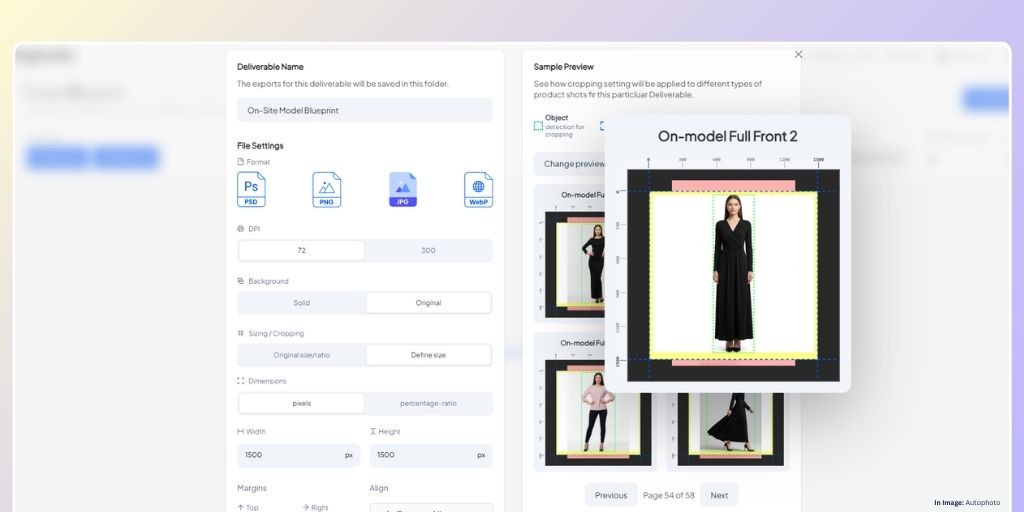
You will start by creating a blueprint that defines your exact resize specifications. Think of blueprints as reusable templates that capture all your platform requirements in one place.
Navigate to the Blueprint section > Create a new blueprint > in your file section, specify your target dimensions.
For example, to create a blueprint for “Amazon Product Images,” specify your image size to 2000x2000px dimensions.
Here, you can also create multiple outputs for different platforms like 2000px for Amazon, 2048px for Shopify, 1080px for Instagram, and 800px thumbnails for your website and so on.
The real power emerges when you combine resizing with other operations. In the same blueprint, you can specify background removal, shadow addition, color correction, and retouching standards.
Every resized image receives complete professional editing. All applied consistently in one automated pass.
Save your blueprint with a clear name. Your entire team can now access this blueprint to bulk resize images, ensuring everyone processes images with identical specifications.
Upload Batch
With your blueprint defined, select it and drag and drop your entire image folder into Autophoto at once. Whether that’s 50 images or 5,000.
Autophoto’s AI immediately begins processing, applying your exact specifications to every image in parallel.
Unlike sequential processors, Autophoto’s architecture handles massive batches simultaneously, making processing time nearly independent of batch size.
During processing, real-time progress updates let creative operations managers understand capacity and communicate accurate delivery timelines to stakeholders.
If your blueprint specifies multiple outputs, Autophoto generates all platform versions simultaneously, organizing them for easy distribution to each sales channel.
Review and Download
Once processing is complete, you can review all resized images in the Autophoto editor itself. Quickly scan results, zoom in to verify quality, and compare outputs across different platform specifications.
For recurring workflows, simply select your existing blueprint, upload new product images, and download results. No setup required.
Teams report being able to batch resize images by the thousands in the time it previously took to manually resize dozens.
Why Choose Autophoto to Resize Bulk Images?
While numerous tools can technically batch resize images, Autophoto addresses the specific operational challenges eCommerce teams face when managing product photography:
Built for Bulk Images
Autophoto is designed for volume. Meaning, you can process 50 images or 50,000 with the same workflow. This scalability means your workflow to bulk resize images grows seamlessly with your business.
The platform handles eCommerce catalog realities. This includes processing entire product lines simultaneously, batch resizing images for seasonal updates in one go, and preparing new SKU photography as fast as you can upload.
When launching 200 new products for a seasonal collection, Autophoto gets them all marketplace-ready in minutes, not days.
Parallel processing ensures speed remains consistent regardless of batch size. Unlike tools that slow exponentially as volume increases, Autophoto maintains performance whether you need to batch resize images for 100 or 10,000 products.
Customization
Every eCommerce business has unique specifications. Autophoto’s blueprint system gives you complete control when you bulk resize images while maintaining AI-grade speed.
You can define custom dimensions for proprietary platforms or regional marketplaces.
Moreover, you can specify exact margin requirements, set custom aspect ratios, set product alignment, and do more all within a blueprint.
Your resized images become complete, publication-ready assets matching exact brand standards.
Ease of Use
Once you have created a Blueprint in Autophoto, anyone from your team can use it to bulk resize images and get the same result.
Simply select the Blueprint, upload images, and you get site-ready images in minutes.
This level of democratization allows creative teams in eCommerce to focus more on strategy rather than doing repetitive tasks.
And since Autophoto is a rule-based platform, if you need to update anything, you can simply set it up by changing the rules of your Blueprint.
Conclusion
The challenge to bulk resize images for eCommerce isn’t just about changing dimensions. It’s about maintaining brand consistency, meeting diverse platform requirements, and scaling your operations without sacrificing quality or speed.
While free tools, Photoshop, and Python each offer ways to batch resize images, they come with inherent limitations that can bottleneck your production workflow.
Autophoto.ai eliminates these bottlenecks by consolidating your entire product image editing process into one intelligent, rule-based platform.
From background removal to multi-platform resizing, shadow addition to color correction, everything happens in a single blueprint that you create once and use forever.
The result? You can bulk resize images by the thousands in minutes with perfect consistency across your entire catalog.