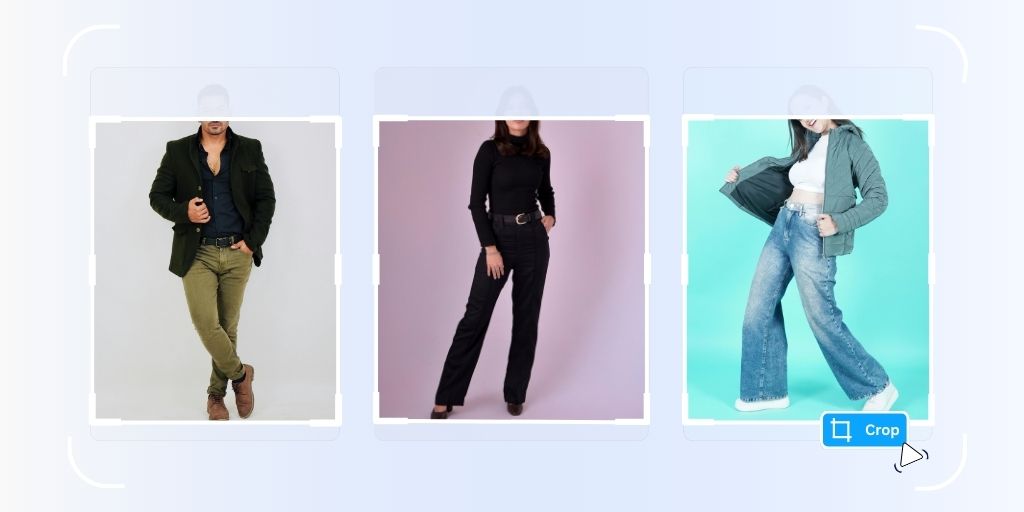
Managing hundreds of product photos for your eCommerce store shouldn’t feel like an endless chore. Yet you may be spending hours manually cropping images to maintain consistency across your catalogs.
Whether you’re preparing model shots, lifestyle images, or flat-lay products, cropping is essential. But it doesn’t have to be time-consuming.
With Autophoto.ai, you can batch crop photos using AI-powered automation that handles entire folders in minutes.
This guide walks you through everything you need to know about using AI to bulk crop photos efficiently. So to avoid any more manual labour, let’s started with the article right away.
Table of Contents
Why Cropping eCommerce Images Matters?
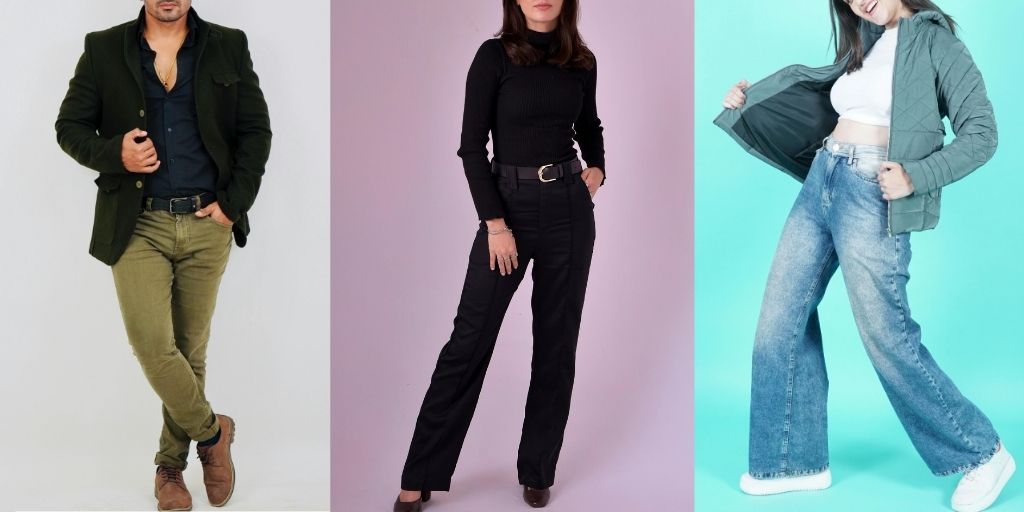
Before diving into the how-to, let’s understand why proper eCommerce cropping is non-negotiable for online stores:
- Professional Presentation and Brand Consistency: Uniform cropping creates a cohesive shopping experience that builds trust with customers. When all your product images follow the same dimensions and framing rules, your store looks polished and established rather than scattered and amateur. This consistency extends from category pages to product detail views, reinforcing your brand identity at every touchpoint.
- Compliance with Platform Guidelines: Major marketplaces like Amazon, eBay, and Etsy have strict image requirements, including specific aspect ratios and cropping rules. For model photography, many platforms prohibit showing faces above a certain point to keep the focus on products rather than people. Proper cropping ensures your listings stay compliant and avoid rejection or suppression in search results.
- Optimized Negative Space and Product Focus: Strategic cropping balances the negative space around your products, drawing the eye exactly where you want it. Too much empty space can make products feel insignificant, while too little creates a cramped, overwhelming impression. AI-powered cropping analyzes each image to find the optimal balance that highlights your products without distraction.
- Faster Page Load Times: Properly cropped images eliminate unnecessary pixels, reducing file sizes without sacrificing quality. This translates directly to faster page loads, which improves user experience and SEO rankings. Every second of load time matters—40% of visitors abandon sites that take more than three seconds to load.
- Mobile Shopping Optimization: With over 78% of eCommerce traffic coming from mobile devices, cropping becomes critical for small-screen viewing. Images need tight, focused framing so products remain clear and appealing on smartphones. When you batch crop photos with consistent ratios, your entire catalog looks great across all devices.
- Streamlined Product Categorization: When you bulk crop photos with standardized dimensions, organizing products becomes significantly easier. Consistent image sizes simplify the process of creating collections, managing inventory systems, and updating your catalog. This uniformity also makes it easier to implement automated workflows and integrate with inventory management software.
Step-by-Step Guide to Batch Crop Photos with Autophoto.ai
Step 1: Create Your Blueprint
Think of an Autophoto blueprint as your customized set of editing instructions that AI will apply to every image in your batch. Instead of editing photos one by one, you configure the rules once, and Autophoto handles the rest automatically.
a. Set Cropping & Margin
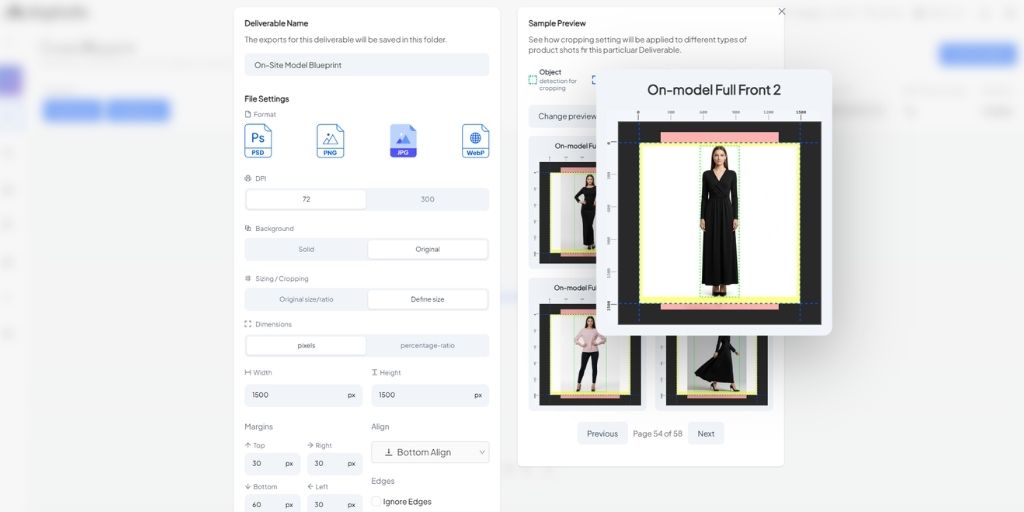
Autophoto’s Cropping AI intelligently detects your product or model within each image and crops according to your specifications. You can define:
- Aspect ratio requirements (square for Instagram, 2:3 for Amazon, custom ratios)
- Subject positioning (centered, rule of thirds, custom placement)
- Minimum padding around the main subject
The Margin AI feature works hand-in-hand with cropping, automatically adding consistent white space around your products. This is particularly valuable when you need uniform borders across varied product sizes.
The AI calculates the perfect margin to maintain visual balance while meeting platform specifications.
For eCommerce stores with diverse product catalogs, these tools eliminate the guesswork. The AI adapts to each product’s unique dimensions while maintaining your overall aesthetic standards.
Also Read: How to Bulk Resize Images for Ecommerce?
b. Set Conditional Export
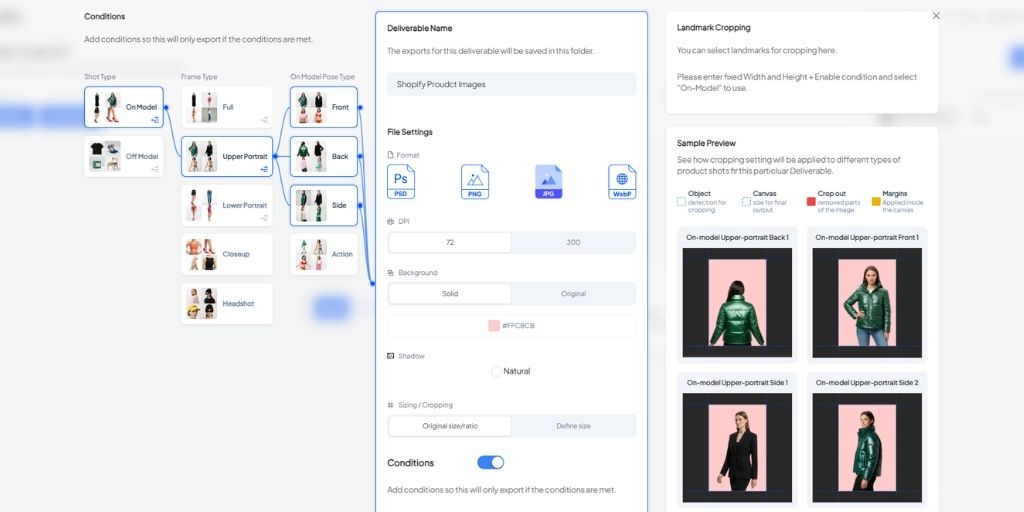
Here’s where Autophoto truly shines for bulk operations. The Conditional Export feature lets you create multiple cropping rules within a single blueprint, no coding required.
For example, you might set conditions like:
- Model shots: Crop all images featuring on-model images from above the lips, using body-aware landmarks to maintain natural framing
- Product-only shots: Center the product with 10% margin on all sides
- Detail shots: Tight crop with minimal margins for close-up texture views
The body-aware landmark feature is particularly powerful for fashion and apparel sellers.
Instead of manually identifying where to crop each model image, you simply tell Autophoto to crop at specific anatomical points (shoulders, waist, knees, etc.), and the AI handles detection and execution across your entire batch.
This means you can upload a mixed folder containing model shots, flat lays, and detailed images, and Autophoto will automatically apply the appropriate cropping rules to each image type.
No more sorting files into separate folders or running multiple editing sessions.
Step 2: Upload Your Batch
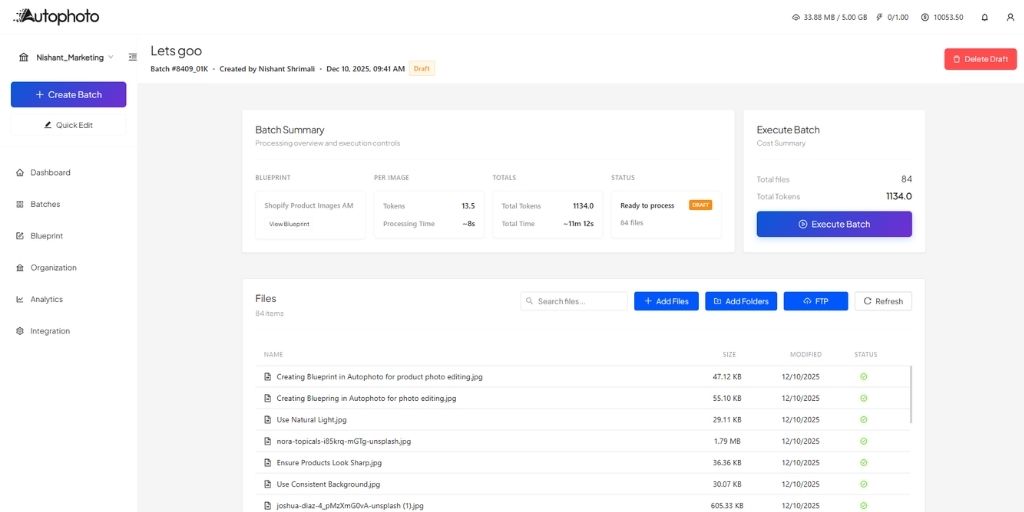
Once your blueprint is configured, the actual processing couldn’t be simpler:
- Select your saved blueprint from your dashboard
- Upload individual files or an entire folder.
- Hit process and let the AI work
Autophoto processes images in parallel, meaning even batches of 500+ photos complete in just a few minutes.
The system applies your cropping rules, margin adjustments, and conditional exports automatically to every image according to the conditions you set.
There’s no need to monitor the process. You can close the browser and return when processing completes.
For teams managing multiple stores or clients, you can create different blueprints for different brands and use them as required.
Step 3: Review & Download
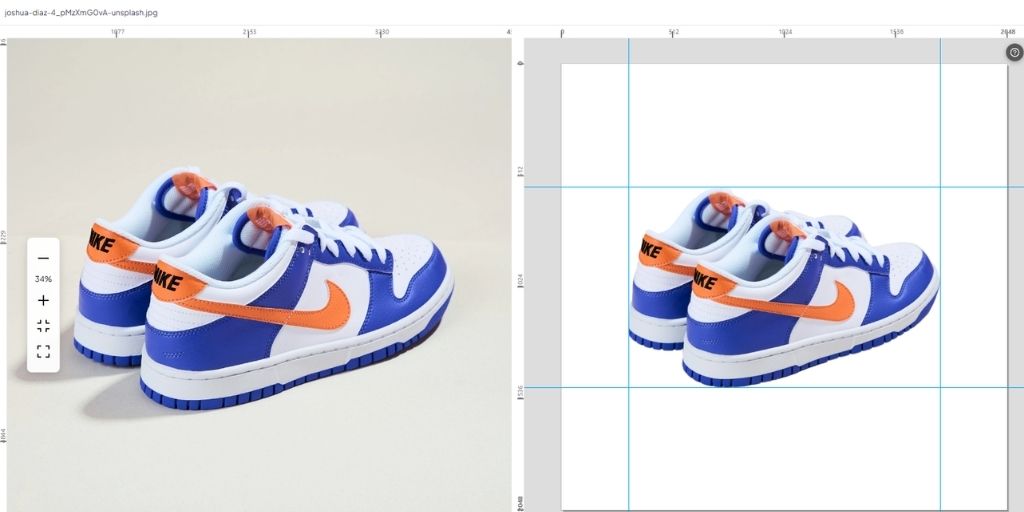
Quality control is built into the workflow. Once processing finishes, Autophoto’s editor displays all your cropped images in a grid view where you can:
- Compare side-by-side: View original and edited versions simultaneously to verify the AI made appropriate decisions
- Spot-check problematic images: Quickly identify any photos that need manual adjustment
- Make quick tweaks: Fine-tune individual images without reprocessing the entire batch
- Batch download: Export all approved images at once in your preferred format and resolution
The comparison view is particularly helpful when you’re first learning what conditions work best for your specific products. You can see exactly how the AI interpreted your rules and refine your blueprint for even better results next time.
Why Batch Crop Photos Instead of Manual Editing?
The math is compelling. Manually cropping 100 product photos at 2 minutes per image takes over 3 hours. With Autophoto, that same batch processes in under 5 minutes while you focus on other tasks.
Beyond time savings, when you batch crop photos with AI-powered automation, you gain:
- Perfect consistency: Human fatigue leads to slight variations in manual work; AI applies identical standards to every image
- Scalability: Process 10 images or 10,000 with the same effort when you batch crop photos using intelligent automation
- Reproducibility: Save blueprints and reuse them across product launches, seasons, or collections
- Flexibility: Update cropping rules and reprocess entire catalogs when platform requirements or brand guidelines change
For eCommerce businesses handling regular product photography, the ability to bulk crop photos with AI isn’t just convenient. It’s a competitive advantage that frees up resources for strategic growth activities.
Whether you need to batch crop photos for a seasonal product launch or bulk crop photos across your entire inventory, Autophoto’s AI-powered system adapts to your workflow. The ability to batch crop photos at scale means you can focus on strategic decisions rather than repetitive tasks.
Conclusion
Learning how to batch crop photos with AI transforms a tedious, time-intensive task into a streamlined, repeatable process.
Autophoto.ai makes professional image cropping accessible to everyone. Whether you’re a solo entrepreneur managing your first online store or a creative director overseeing thousands of SKUs.
The combination of intelligent cropping AI, flexible margin controls, and condition-based processing means you can handle complex, mixed-content batches without sorting files manually or running multiple editing sessions.
Set up your blueprint once, and batch crop photos consistently across your entire catalog in minutes instead of hours. The ability to bulk crop photos efficiently transforms how eCommerce businesses manage their visual content, turning hours of manual work into minutes of automated processing.
Ready to edit product photos with AI? Try Autophoto.ai and experience how the power to batch crop photos with AI can transform your product photography workflow. Start today and discover why thousands of eCommerce managers choose to bulk crop photos with Autophoto’s intelligent automation.